If you’re still reusing the same three or four passwords across every account you own, you’re not alone — and you’re also sitting on a ticking time bomb. Data breaches happen almost weekly now, and when one site leaks your email and password combo, hackers immediately try that same combo on banking sites, email accounts, and social media. This is called credential stuffing, and it’s one of the single biggest reasons accounts get hijacked today.
The fix is simple in theory: use a long, random, unique password for every single account. The problem is that no human being can actually remember 200 different 20-character passwords. That’s exactly the gap password manager apps are built to close. In this guide, we’ll break down what password managers actually do, compare the best free and paid options available in 2026, and help you pick the right one for your situation — whether that’s a student on a tight budget, a family sharing logins, or a small business trying to keep its team secure.
What Is a Password Manager and How Does It Work?
A password manager is an app that generates, stores, and automatically fills in your passwords across websites and apps. Instead of remembering dozens of separate logins, you only need to remember one strong master password (or use biometrics like Face ID or a fingerprint) to unlock the app. Everything else — your banking login, your email password, your work accounts — sits inside an encrypted vault that only you can open.
Here’s the basic workflow once you set one up:
- You install the app and browser extension, then create a master password.
- The app asks if you want to import existing passwords saved in your browser.
- Whenever you sign up for a new account, the app suggests a strong, random password and saves it automatically.
- The next time you visit that site, the app fills in your username and password for you — no typing, no remembering.
- Your entire vault syncs securely across your phone, laptop, and tablet.
Most modern password managers do more than just store passwords. They also generate one-time codes for two-factor authentication, store secure notes and credit card details, alert you if any of your saved passwords have appeared in a known data breach, and flag weak or reused passwords so you can fix them.
Why You Actually Need One (Even If You Think You’re Careful)
A lot of people assume password managers are only for tech-savvy users or businesses with something to hide. In reality, the opposite is true — the people who benefit most are ordinary users with dozens of everyday accounts: email, banking, shopping, streaming, social media, work tools, and more.
Consider what happens without one. Most people fall into one of two habits: reusing a handful of passwords everywhere, or using slightly modified versions of the same password (adding a “1” or “!” at the end). Both approaches are far weaker than they feel. Once a single site you use gets breached, attackers run automated tools that try that same password — and its obvious variations — against thousands of other sites in seconds.
A password manager removes the temptation entirely. Since you never have to type or remember most of your passwords, there’s no reason to reuse anything. Every account gets its own random string of characters that would take a modern computer decades to guess.
Key Features to Look For in a Password Manager App
Not all password managers are built the same way. Before picking one, it helps to know which features actually matter and which are just marketing noise.
1. Zero-Knowledge Encryption
This is the single most important feature. A zero-knowledge architecture means your data is encrypted and decrypted only on your own device — the company that makes the app never has access to your master password or your unencrypted vault, even on their own servers. If their servers ever get hacked, attackers would only find scrambled, useless data.
2. Cross-Platform Sync
A password manager is only useful if it works everywhere you do. Look for apps that support Windows, macOS, iOS, Android, and Linux, along with browser extensions for Chrome, Firefox, Safari, and Edge. Syncing should be near-instant, so a password saved on your laptop is immediately available on your phone.
3. Password Generator
Every good password manager includes a built-in generator that creates long, random passwords with customizable length and character types. Some also generate memorable “passphrases” (a string of random words) for accounts where you occasionally need to type the password manually.
4. Breach Monitoring and Security Alerts
The better apps constantly check your saved logins against databases of known data breaches. If one of your passwords shows up in a leak, you get an immediate alert telling you to change it before it can be exploited.
5. Two-Factor Authentication (2FA) Support
Many password managers can also act as an authenticator app, generating the six-digit codes you’d normally get from a separate app like Google Authenticator. This isn’t ideal from a pure security standpoint (keeping your password and 2FA code in the same app reduces the benefit of having two separate factors), but it’s convenient, and still far better than no 2FA at all.
6. Secure Sharing and Family Plans
If you need to share a streaming login or a Wi-Fi password with family members without texting it in plain text, look for apps with a secure sharing feature and dedicated family plans that let multiple people manage their own private vaults under one subscription.
Free vs Paid Password Managers: What’s the Real Difference?
This is the question most people ask first, and the honest answer is: a good free password manager will genuinely keep you safer than no password manager at all — but paid plans unlock features that matter a lot once your digital life gets more complex.
Free plans typically include unlimited password storage, basic autofill, and sync across a limited number of devices. Where they usually fall short is advanced breach monitoring, priority customer support, secure file storage, and family sharing options.
Paid plans, usually priced anywhere from $2 to $5 per month when billed annually, add things like unlimited device sync, encrypted file attachments, dark web monitoring, VPN bundles, priority support, and multi-user family or team plans. For most individual users, a solid free plan is enough. For families, freelancers handling client credentials, or small businesses, a paid plan quickly pays for itself in convenience and protection.
Best Free Password Manager Apps in 2026
1. Bitwarden
Bitwarden remains the gold standard among free password managers. It’s open-source, meaning its code has been independently audited multiple times, which gives it a level of transparency most competitors can’t match. The free tier includes unlimited passwords, unlimited devices, a built-in password generator, and basic two-factor authentication support — features that other apps often lock behind a paywall. For anyone who wants strong security without paying a cent, Bitwarden is usually the first recommendation.
2. Google Password Manager
If you’re deep in the Google/Android ecosystem, Google Password Manager is already built into Chrome and Android, requiring zero setup. It automatically saves and fills passwords, checks them against known breaches, and syncs across every device signed into your Google account. It lacks some of the advanced features of dedicated apps — like secure notes or robust sharing — but for casual users who mostly browse on Chrome and Android, it’s a genuinely solid, no-cost option.
3. Apple Passwords
Apple’s dedicated Passwords app, built into iOS, iPadOS, and macOS, works similarly to Google’s offering but for the Apple ecosystem. It syncs through iCloud Keychain, supports passkeys (a newer, passwordless login standard), and includes breach monitoring. It’s tightly integrated with Face ID and Touch ID, making autofill nearly instant. The main limitation is that it’s far less useful if you also use Windows or Android devices regularly.
4. NordPass (Free Tier)
NordPass, from the team behind NordVPN, offers a clean, beginner-friendly free tier with unlimited password storage on one device at a time. It uses modern XChaCha20 encryption, which is considered even more efficient than the older AES-256 standard many competitors still rely on. The free plan is fairly limited on multi-device sync, but it’s a great starting point for someone who wants a simple, well-designed app.
Best Paid Password Manager Apps in 2026
1. 1Password
1Password is consistently ranked among the best paid password managers, and for good reason. Its interface is polished, its “Watchtower” security dashboard flags weak, reused, and breached passwords in one clean view, and its Travel Mode feature lets you temporarily hide sensitive vaults when crossing borders. Family plans allow multiple members to have their own private vault while sharing selected items like Wi-Fi passwords or streaming logins. It’s a favorite among both individuals and businesses that want a premium, no-compromise experience.
2. Dashlane
Dashlane bundles a built-in VPN with its premium plans, which is a nice touch if you also want to browse securely on public Wi-Fi without paying for two separate subscriptions. Its dark web monitoring is particularly thorough, scanning a wide range of breach databases and alerting you quickly. The autofill experience is smooth across both desktop and mobile, and its security score feature gamifies improving your overall password hygiene.
3. Keeper
Keeper is built with a strong focus on business and enterprise use, but its personal and family plans are equally capable. It includes encrypted file storage, a built-in messaging tool called KeeperChat for sending sensitive information securely, and detailed breach monitoring through its BreachWatch feature. Its admin console makes it a popular choice for small businesses that need to manage access across a team.
4. NordPass Premium
Upgrading NordPass unlocks unlimited device sync, secure item sharing, and priority support, while keeping the same modern encryption and clean design of the free version. It’s a solid mid-range option, particularly for anyone already using other Nord Security products.
How Password Manager Encryption Actually Keeps You Safe
It’s worth understanding, at a basic level, why storing all your passwords in one app is actually safer than not using one at all — because on the surface, it can sound risky to put “all your eggs in one basket.”
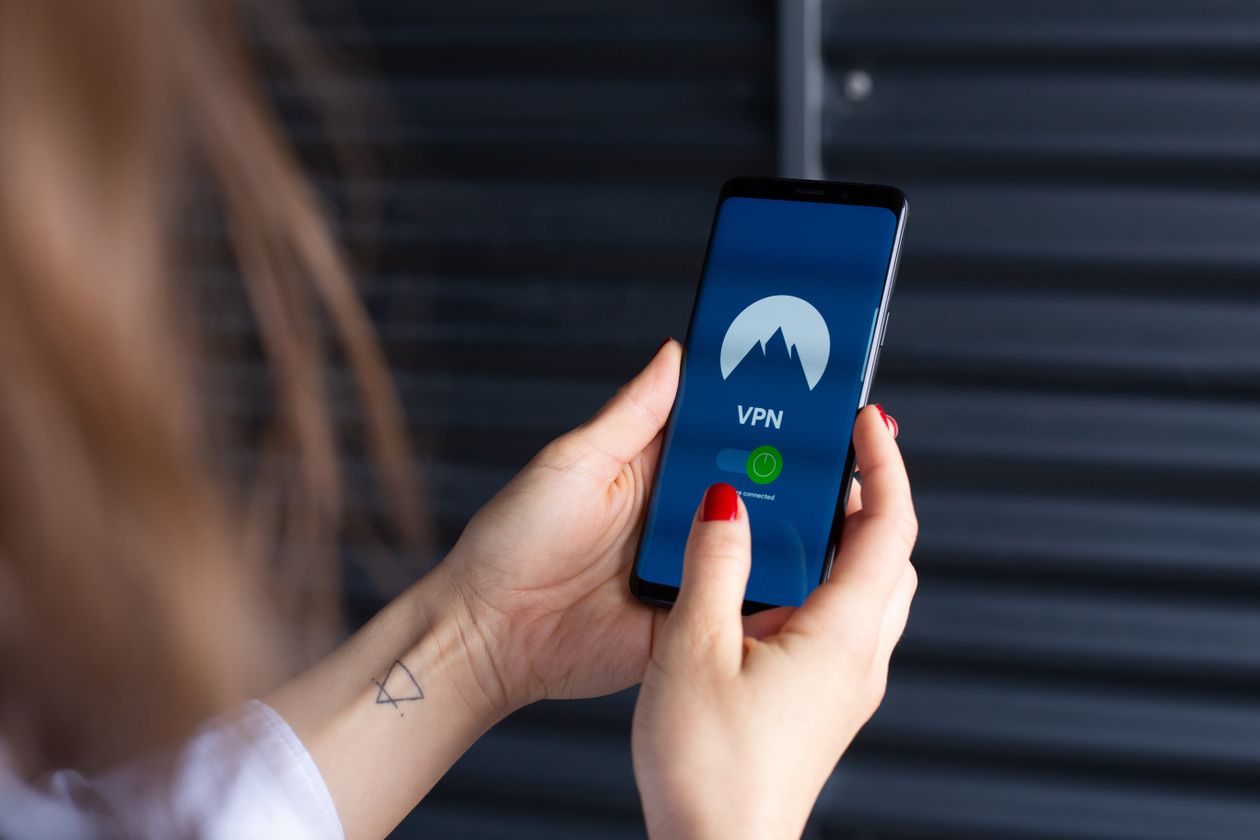
Reputable password managers use AES-256 encryption (or newer standards like XChaCha20), the same level of encryption used by banks and governments to protect classified data. Your vault is encrypted and decrypted locally on your device using a key derived from your master password — a key the company itself never sees or stores. This is the “zero-knowledge” model mentioned earlier.
In practice, this means even if a password manager’s servers were breached, attackers would only get encrypted, scrambled data that’s effectively useless without your unique master password — something that exists only in your head and is never transmitted or stored anywhere. This is fundamentally different from a typical data breach, where plain-text or weakly hashed passwords can sometimes be cracked.
Common Mistakes People Make When Using a Password Manager
Switching to a password manager is a huge step up in security, but it’s still possible to undermine it with a few common mistakes:
- Using a weak master password. Your master password is the single key to your entire vault, so it needs to be long, unique, and never reused anywhere else. A passphrase of four or five random words is often easier to remember and stronger than a short, complex password.
- Skipping two-factor authentication on the vault itself. Most password managers support 2FA for logging into the app itself — always turn this on. It means that even if someone somehow learns your master password, they still can’t get in.
- Not backing up your emergency recovery kit. Most apps provide a recovery code or emergency access option in case you forget your master password. Store this somewhere safe and offline, like a printed copy in a locked drawer, not as a screenshot on your phone.
- Ignoring breach alerts. If your password manager flags a saved login as compromised, change it immediately rather than dismissing the notification.
- Leaving old, unused accounts unmanaged. Periodically review your vault and delete or update logins for services you no longer use.
Password Managers vs Browser-Saved Passwords: Which Is Better?
Most browsers, like Chrome, Edge, and Safari, offer to save your passwords automatically. It’s convenient, but it’s generally a weaker option than a dedicated password manager for a few reasons.
Dedicated apps tend to have more robust encryption practices, better cross-platform support (a browser-saved password on Chrome doesn’t always sync cleanly to Safari on your iPhone), and features like breach monitoring and secure sharing that browsers simply don’t offer. They’re also built specifically around password security as their core product, rather than as a secondary feature bolted onto a web browser.
That said, browser-saved passwords are still far better than reusing weak passwords or writing them down. If a dedicated app feels like overkill right now, using your browser’s built-in manager is a reasonable middle ground — just be aware it’s the less secure of the two options.
Password Managers for Families
Families juggle a surprising number of shared logins — streaming services, smart home apps, shared Wi-Fi passwords, and sometimes shared bank accounts. A family plan lets each member maintain their own private, individual vault while also having a shared vault for items everyone needs access to.
This setup is especially useful for parents who want to give kids access to specific accounts without handing over every password in the house, and for couples managing shared subscriptions and bills together. Most major paid apps — 1Password, Dashlane, and Keeper among them — offer family plans that cost only slightly more than an individual plan while covering five or six people.
Password Managers for Small Businesses
For small teams, password managers solve a very real problem: shared logins for tools like social media accounts, hosting dashboards, and payment processors that multiple employees need access to, but that shouldn’t be passed around over email or chat.
Business-focused plans typically add an admin console where a manager can grant or revoke access instantly (critical when an employee leaves the company), enforce password policies across the team, and generate audit logs showing who accessed what and when. Keeper and 1Password both offer well-built business tiers, and Bitwarden’s business plan is a strong budget-friendly option for smaller teams.
How to Choose the Right Password Manager for You
With so many solid options available, the right choice really comes down to your specific situation:
- Just want free and secure: Bitwarden is hard to beat, thanks to its open-source transparency and generous free tier.
- All-in on Google or Apple devices: Google Password Manager or Apple Passwords will feel seamless since they’re already built in.
- Want the most polished, premium experience: 1Password consistently leads on design and usability.
- Want a bundled VPN: Dashlane’s premium plans include VPN access at no extra cost.
- Running a small business or team: Keeper or 1Password’s business tiers offer the admin controls you’ll need.
- Managing a household: Look for a dedicated family plan from any of the paid apps above.
Frequently Asked Questions
Are password managers actually safe to use?
Yes. Reputable password managers use strong, zero-knowledge encryption, meaning even the company itself can’t read your stored passwords. The risk of using a well-reviewed password manager is significantly lower than the risk of reusing weak passwords across multiple sites.
What happens if I forget my master password?
Most apps provide a recovery process, often through a printed emergency kit or a trusted emergency contact you set up in advance. Because of the zero-knowledge design, the company usually cannot simply reset your master password for you, which is why saving your recovery information somewhere safe is so important.
Can I switch password managers later without losing my data?
Yes. Nearly all password managers let you export your vault as an encrypted or CSV file, which can then be imported into a new app. It’s a good idea to delete the exported file securely once the import is complete, since CSV exports are typically unencrypted.
Do I still need two-factor authentication if I use a password manager?
Yes, absolutely. A password manager protects your passwords, but 2FA protects you even if a password somehow leaks. The two work together, not as substitutes for each other.
Are passkeys replacing password managers?
Passkeys are a newer, more secure login method that’s gradually being adopted by major websites, and many password managers now support storing and syncing them alongside traditional passwords. Rather than replacing password managers, passkeys are becoming just another type of credential these apps manage for you.
Final Thoughts
Password reuse is still one of the biggest, most preventable security risks most people carry around every day. Whether you go with a free option like Bitwarden or Google Password Manager, or invest a few dollars a month in a premium app like 1Password or Dashlane, the important thing is simply making the switch. Once it’s set up, a password manager runs quietly in the background, generating and filling in strong passwords without you having to think about it — turning your weakest security habit into one of your strongest.
Start with whichever free option matches your ecosystem, get comfortable with how it works, and upgrade to a paid plan later if you need family sharing, business features, or extra peace of mind from advanced breach monitoring. The single best password manager is simply the one you’ll actually use consistently.