Whether you’re recording a quick bug report for your dev team, putting together a software tutorial, capturing gameplay highlights, or documenting a step-by-step process for coworkers, you don’t need to spend a rupee to get it done well. The free screen recording space in 2026 is genuinely strong — several tools now match or beat paid software from just a few years ago, with no watermarks, no awkward time limits, and no constant upsell prompts interrupting your workflow.
The challenge isn’t finding a free screen recorder — it’s finding the right free screen recorder for what you’re actually trying to do. A streamer needs different features than someone recording a five-minute product walkthrough for a client. This guide breaks down the best free screen recording software available in 2026, organized by what each one does best, so you can skip the trial-and-error and pick the right tool the first time.
What to Look For in a Free Screen Recorder
Not all “free” screen recorders are created equal. Some slap a watermark across your entire video, others cut you off after five or fifteen minutes, and a few try to get you to sign up for a paid plan the moment you hit export. Before picking a tool, it’s worth knowing which criteria actually separate a genuinely useful free option from a bait-and-switch one.
- No watermark on exports: A visible logo stamped across your video makes it unusable for anything professional.
- Reasonable or no time limits: Some free tiers cap recordings at 5–15 minutes, which is fine for quick clips but frustrating for longer tutorials.
- System audio + microphone recording: You’ll often want to capture both what’s happening on-screen and your narration at the same time.
- Webcam overlay support: Useful for tutorials and presentations where seeing the presenter’s face adds context.
- Export format and quality: MP4 output at 1080p or higher, without needing to convert the file afterward.
- Ease of setup: Some tools are ready in seconds; others require configuring sources, scenes, and audio routing before your first recording.
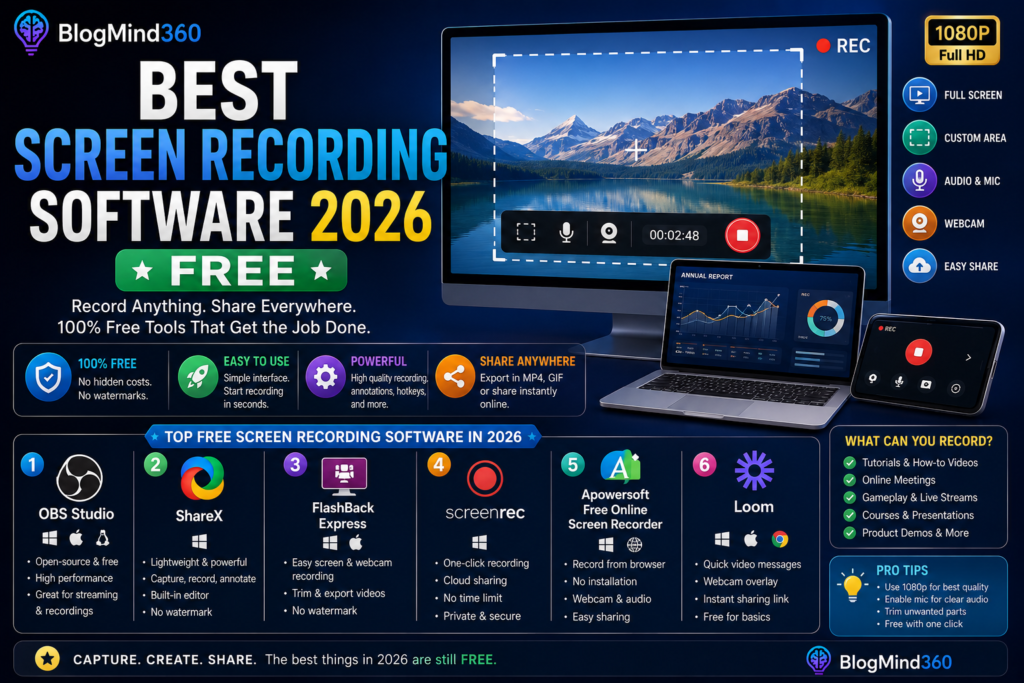
Best Free Screen Recording Software in 2026
1. OBS Studio — Best Overall for Power Users
OBS Studio remains the gold standard for free screen recording, and for good reason. It’s fully open-source, available on Windows, Mac, and Linux, and comes with absolutely no watermarks, time limits, or premium tier trying to upsell you. This is the exact same software professional streamers and content creators rely on daily. OBS can record your entire screen, a specific window, or a custom-defined region, and it supports multiple audio sources, scene switching, and webcam overlays — features you’d normally expect to pay for elsewhere.
The trade-off is a steeper learning curve. OBS wasn’t designed to be the simplest tool in the room — it was designed to be the most capable one. If you’re willing to spend fifteen minutes on initial setup (choosing your sources, configuring audio, and setting your output format), you’ll end up with a tool that can handle almost any recording scenario you throw at it, from a quick tutorial to a full multi-hour livestream.
2. ShareX — Best for Windows Power Users and Documentation
ShareX is a genuine Swiss Army knife for Windows users who need more than just video capture. Beyond standard screen recording with no watermark and no time limit, its standout feature is animated GIF recording — select a region, hit record, and ShareX outputs a ready-to-share GIF, perfect for quick bug reports or documentation without any video editing required.
It also bundles annotation tools, automatic upload to image and file hosts, and even built-in OCR (optical character recognition) for pulling text directly out of a screenshot. For developers, QA testers, and technical writers who need to quickly capture and share visual evidence, ShareX often ends up being more useful day-to-day than a full-featured video recorder like OBS.
3. QuickTime Player — Best Built-In Option for Mac
QuickTime Player is the underrated default sitting on nearly every Mac already. It won’t win any awards for features, but it’s stable, requires zero installation, and handles straightforward screen recording — including audio — reliably. For quick, simple captures where you don’t need scene switching or advanced audio routing, QuickTime is often the fastest route from “I need to record my screen” to “done.”
4. Xbox Game Bar — Best Quick Capture for Windows
Built directly into Windows 10 and 11, Xbox Game Bar is the fastest way to grab a quick recording without installing anything at all. Originally designed for capturing gameplay clips, it works perfectly well for recording any application window, complete with microphone and system audio. It’s not built for advanced editing or multi-source scenes, but for a fast, no-fuss recording — especially a short clip to send a coworker — it’s hard to beat the convenience of a tool that’s already sitting on your machine.
5. ScreenPal — Best for Beginners
ScreenPal (formerly known as Screencast-O-Matic) removed its watermark from the free tier, making it one of the cleanest, most beginner-friendly options available. The interface is about as self-explanatory as screen recording software gets: pick your recording area, toggle your microphone and webcam, and hit record. The free tier caps individual recordings at 15 minutes, which comfortably covers most tutorials and presentations without feeling restrictive for typical use cases.
6. Loom — Best for Quick, Shareable Async Videos
Loom is built around a specific workflow: record, get an instant shareable link, done. If your goal is sending quick product updates, bug walkthroughs, or internal explainers to a team without the friction of exporting and uploading a video file separately, Loom removes nearly every extra step. The free Starter plan caps individual recordings at 5 minutes and limits you to 25 stored videos, which is enough for casual, occasional use but will feel tight if you’re recording daily.
7. StreamYard — Best for Presenter-Led Recordings in the Browser
StreamYard runs entirely in your browser, letting you record your screen, your camera, and even remote guests without installing any software. The free plan includes 2 hours of local multi-track recording per month and 5 hours of cloud storage — enough for regular presenter-led content like webinars, interviews, or narrated walkthroughs. If you specifically want a polished, camera-plus-screen layout without wrestling with OBS’s scene editor, StreamYard is the more approachable choice.
Quick Comparison: Which Free Screen Recorder Fits Your Need?
| Tool | Best For | Watermark | Time Limit |
|---|---|---|---|
| OBS Studio | Full control, streaming-grade capture | None | None |
| ShareX | Windows documentation, GIFs | None | None |
| QuickTime Player | Simple Mac recording | None | None |
| Xbox Game Bar | Fast Windows clips | None | None |
| ScreenPal | Beginners | None (free tier) | 15 minutes |
| Loom | Quick async sharing | None | 5 minutes |
| StreamYard | Presenter + screen recordings | None | 2 hrs/month local |
OBS Studio vs Simpler Tools: Which Should You Actually Pick?
This is probably the most common decision point for anyone starting out, so it’s worth breaking down clearly. OBS gives you the most control: multiple scenes, custom audio mixing, the ability to switch between sources mid-recording, and settings tuned for everything from simple screen capture to full livestreaming. The cost of that control is setup time and a slightly intimidating interface for first-time users.
Simpler tools like ScreenPal, Loom, or Xbox Game Bar trade that flexibility for speed. You can go from opening the app to having a finished recording in under a minute, with far fewer decisions to make along the way. If you’re recording something complex — say, a tutorial that needs to switch between your webcam, a slide deck, and a live application demo — OBS is worth the learning curve. If you just need to quickly show someone what’s happening on your screen, a simpler tool will get you there faster with zero frustration.
Recording System Audio and Microphone Together
One of the more common frustrations people run into with free screen recorders is capturing system audio (like a video playing on-screen) alongside their own microphone narration at the same time. Not every free tool handles this cleanly out of the box.
OBS handles this well once configured correctly — you simply add both your microphone and your desktop audio as separate sources, and OBS mixes them into a single output track. On Windows, tools like ShareX and Xbox Game Bar also support this natively without extra setup. On Mac, QuickTime can only record microphone audio directly; capturing internal system audio requires an additional free utility like BlackHole to route audio properly, which is worth knowing before you start recording something where playing back computer audio matters, like a software demo with sound effects or a video call.
Common Mistakes People Make with Free Screen Recorders
- Not testing audio before a long recording. Nothing is more frustrating than finishing a 20-minute tutorial only to discover your microphone wasn’t actually being captured. Always record a quick 10-second test clip first.
- Recording at an unnecessarily high resolution. Recording at your monitor’s full native resolution when you don’t need to can create massive file sizes with no real quality benefit for tutorial-style content.
- Ignoring your free tier’s time limit until it cuts you off mid-recording. If you’re using a tool like Loom or ScreenPal, know your time cap in advance and plan accordingly, or switch to an unlimited tool like OBS for longer sessions.
- Skipping a quick edit pass. Even a free recorder’s raw output usually benefits from trimming dead air at the start and end — most tools, including OBS and ShareX, include basic trimming without needing separate editing software.
- Forgetting to close notification pop-ups before recording. A stray Slack or email notification appearing mid-recording is one of the most common (and easily avoidable) mistakes — enable “Do Not Disturb” mode before you hit record.
Free vs Paid Screen Recorders: When Should You Upgrade?
For the vast majority of individual users — students, developers, support teams, and casual content creators — a free tool genuinely covers everything you need. Where paid tools like Camtasia or premium tiers of Loom and ScreenPal start to make sense is when you need built-in video editing (like zoom-and-pan effects, transitions, or callout annotations added after recording), team collaboration features, or you’re consistently hitting free-tier time and storage limits multiple times a week.
A practical approach: start with a free tool that fits your immediate need. If you find yourself constantly exporting your raw recording into a separate free editor (like DaVinci Resolve or CapCut) just to trim and polish it, that’s usually the clearest signal that a paid, all-in-one tool would actually save you time in the long run.
How to Choose the Right Free Screen Recorder for You
- Want maximum control and no limits whatsoever: OBS Studio is the clear choice, worth the short learning curve.
- On Windows and need documentation, GIFs, or bug reports: ShareX’s toolkit is purpose-built for this.
- On Mac and just need something quick and reliable: QuickTime Player is already installed and just works.
- Need a fast, no-install recording right now: Xbox Game Bar (Windows) covers you instantly.
- New to screen recording and want the simplest interface: ScreenPal’s beginner-friendly design is hard to beat.
- Sending quick async updates to a team: Loom’s record-and-share workflow removes almost every extra step.
- Want polished presenter + screen layouts without editing: StreamYard’s browser-based recording handles this well.
Frequently Asked Questions
Is OBS Studio really completely free, with no hidden catches?
Yes. OBS Studio is open-source software maintained by a nonprofit and volunteer community, with no premium tier, no watermarks, and no recording limits of any kind. It’s genuinely free for both personal and commercial use.
Can I record my screen and webcam at the same time for free?
Yes, most tools on this list — including OBS, ScreenPal, Loom, and StreamYard — support a simultaneous screen-plus-webcam layout at no cost, which is especially useful for tutorials where seeing the presenter adds context.
Which free screen recorder produces the best video quality?
OBS Studio generally offers the most control over output quality, since you can manually configure bitrate, resolution, and frame rate to match exactly what you need, whereas simpler tools often use fixed, pre-set quality levels.
Do free screen recorders work for recording online meetings like Zoom or Google Meet?
Yes, tools like OBS, ShareX, and Xbox Game Bar can all capture video call windows along with system audio, though it’s worth checking your organization’s meeting recording policies and getting consent from participants before recording any call.
What’s the easiest free screen recorder for someone who’s never recorded their screen before?
ScreenPal or Xbox Game Bar (on Windows) are the most beginner-friendly, requiring almost no setup before your first recording, compared to OBS’s more involved configuration process.
Final Thoughts
The free screen recording space in 2026 has genuinely matured to the point where cost is rarely the limiting factor anymore — the real decision comes down to matching a tool to your actual workflow. If you want total control and don’t mind a short setup process, OBS Studio remains the most capable option available at any price. If speed and simplicity matter more than advanced features, tools like ScreenPal, Loom, or your operating system’s built-in recorder will get you a clean, shareable video in minutes.
Start with whichever tool matches what you’re recording today — you can always switch later as your needs get more specific. None of the options above will cost you anything to try, so there’s little downside to testing two or three before settling on your go-to recorder.