
Quick answer: To speed up a slow Windows PC, first open Task Manager (Ctrl + Shift + Esc) to identify whether CPU, RAM, or disk is the bottleneck. Then disable unnecessary startup programs, clear temporary files, run a malware scan, and turn off unneeded visual effects. If your PC still lags after these software fixes, upgrading from a hard drive to an SSD is the single most impactful hardware change you can make, followed by adding more RAM (16GB is the recommended minimum in 2026).
A slow PC rarely means your computer is actually dying — in most cases, it’s Windows quietly accumulating background clutter, startup bloat, and configuration settings that weren’t optimized for your specific hardware. This guide walks through a diagnosis-first approach: figure out exactly what’s slowing your PC down, fix it with free software tweaks, and only consider hardware upgrades if software fixes genuinely aren’t enough.

Step 1: Diagnose What’s Actually Slowing Your PC Down
Before changing any settings, spend two minutes identifying the actual bottleneck — this saves you from wasting time on fixes that won’t help your specific problem.
- Press Ctrl + Shift + Esc to open Task Manager.
- Click the Performance tab and check your CPU, Memory (RAM), and Disk usage while your PC feels slow.
- If CPU is consistently near 100%, a background process or too many open apps is overloading your processor.
- If Memory is consistently above 80-90%, you’re running out of RAM and need to close apps or add more memory.
- If Disk usage spikes to 100% even during light tasks, you likely still have a traditional hard drive (HDD) rather than an SSD — this is one of the most common causes of a sluggish-feeling PC.
Sudden slowdowns (as opposed to gradual ones) are typically caused by a recent Windows update, malware, or a specific background application consuming excessive resources — check the Startup apps and Processes tabs in Task Manager to spot the culprit.
Step 2: Restart Your PC (Yes, Actually Do This First)
If you rarely fully shut down your computer, background processes, memory leaks, and stuck applications gradually build up and slow everything down. A full restart clears temporary memory and finalizes any pending Windows updates that might be running in the background and silently consuming resources. It sounds almost too simple, but it genuinely resolves a meaningful share of “my PC suddenly got slow” complaints on its own.
Step 3: Disable Unnecessary Startup Programs
Too many applications launching automatically at boot is one of the single biggest causes of a slow-feeling PC, especially during the first few minutes after logging in.
- Open Task Manager (Ctrl + Shift + Esc) and click the Startup apps tab.
- Review the list and note the Startup impact column, which shows how much each app slows down your boot process.
- Right-click any app you don’t need running immediately at startup (chat apps, cloud storage clients, update checkers) and select Disable.
- Leave essential items enabled, like your antivirus software and any drivers required for hardware like your touchpad or graphics card.
You can still open any disabled app manually whenever you actually need it — disabling it from startup just stops it from launching automatically and consuming resources every single time you boot up.
Step 4: Clear Temporary Files and Free Up Storage
A nearly full storage drive can trigger noticeable performance issues, since Windows needs free space to manage virtual memory and temporary system files efficiently.
- Open Settings and go to System > Storage.
- Turn on Storage Sense, which automatically clears temporary files and empties the Recycle Bin on a schedule you set.
- Alternatively, search for Disk Cleanup in the Start menu, select your main drive, and check the boxes for temporary files, system files from Windows updates, and other safe-to-delete categories.
- Aim to keep at least 15-20% of your main drive free for smooth day-to-day performance.
Step 5: Run a Full Malware Scan
Viruses and malware can silently consume significant CPU, memory, and network resources in the background, often without any obvious symptoms beyond general sluggishness. Open Windows Security (built into Windows 11 at no extra cost), go to Virus & threat protection, and run a full scan rather than just a quick scan, since quick scans skip large portions of your file system. If the scan finds anything, follow the recommended removal steps and restart your PC afterward.
Step 6: Turn Off Unnecessary Visual Effects
Windows’ animations, shadows, and transparency effects look nice, but they consume system resources that matter more on older or lower-spec machines.
- Type “Adjust the appearance and performance of Windows” into the Start menu search and open it.
- On the Visual Effects tab, select Adjust for best performance to disable all unnecessary animations at once, or manually uncheck specific effects if you want to keep a few.
- Click Apply, then OK.
This single change tends to make the interface feel noticeably snappier on older hardware, since menus, windows, and taskbar interactions no longer wait for animations to finish.
Step 7: Check Your Power Plan (Especially on Laptops)
Many laptops default to a Power Saver plan when running on battery, which actively throttles CPU performance to extend battery life — this is a common, easily overlooked reason a laptop feels sluggish specifically when unplugged from a charger.
- Search for “Choose a power plan” in the Start menu.
- Select Balanced for everyday use, or Best Performance when your laptop is plugged in and you need maximum speed.
- Avoid leaving your laptop permanently on Power Saver unless battery life is a bigger priority for you than speed.
Step 8: Manage Background Apps and Notifications
Apps running in the background — even ones you’re not actively using — can quietly consume CPU cycles, memory, and battery. Go to Settings > Apps > Installed apps, click the “…” menu next to any app you don’t need running constantly, select Advanced options, and change Background permissions to Never. It’s also worth turning off notifications for apps you don’t need alerts from, via Settings > System > Notifications — fewer background interruptions means fewer resources spent processing them.
Step 9: Uninstall Unused Software and Bloatware
Software you installed once and never use still takes up storage space and, in many cases, continues running background services you’re not aware of. Go to Settings > Apps > Installed apps, sort by size or install date, and remove anything you genuinely don’t use anymore — including pre-installed manufacturer bloatware that often ships with new PCs and rarely serves any real purpose for most users.
Step 10: Update Windows and Your Drivers
Outdated drivers, particularly for your graphics card and chipset, can cause both performance issues and instability. Go to Settings > Windows Update and install any pending updates, including optional driver updates listed separately. For graphics drivers specifically, checking directly on NVIDIA, AMD, or Intel’s official site for the latest driver often gets you more recent updates and better performance improvements than what Windows Update alone provides.
When Software Fixes Aren’t Enough: Hardware Upgrades Worth Considering
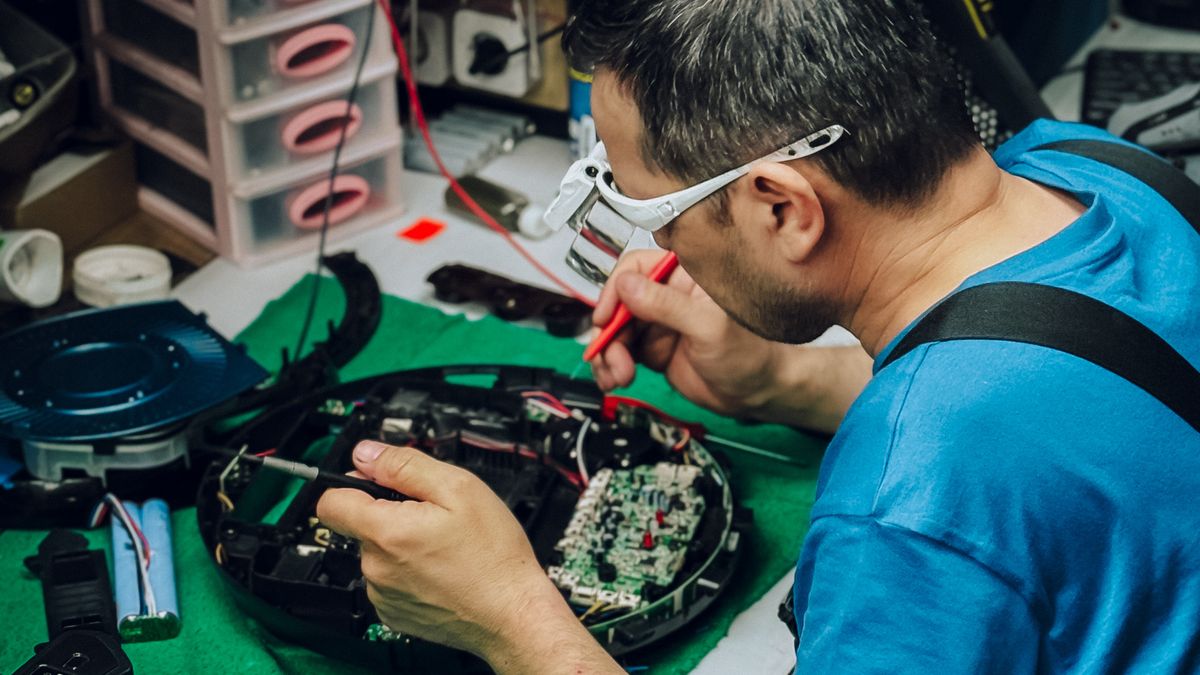
If you’ve worked through every step above and your PC is still noticeably slow, the issue is likely genuine hardware limitations rather than software configuration. Two upgrades deliver the most noticeable real-world improvement:
Upgrade to an SSD
If your PC still has a traditional hard drive (HDD), replacing it with a solid-state drive (SSD) is the single most impactful hardware upgrade available in 2026. An SSD can reduce boot times from over a minute down to under 25 seconds and delivers file transfer speeds 5 to 20 times faster than a spinning hard drive. If your PC’s disk usage regularly spikes to 100% even during light tasks (as checked in Step 1), this is almost certainly your bottleneck, and no software tweak will fully compensate for it.
Add More RAM
If your PC slows down specifically when multitasking or with several browser tabs open, you’re likely hitting a RAM ceiling. In 2026, 16GB is the recommended minimum for smooth everyday use, while 32GB or more benefits heavy multitasking, creative work, and AI-powered applications that have become increasingly common. Check whether your PC’s RAM is user-upgradeable (some laptops solder RAM directly to the motherboard, making upgrades impossible) before buying additional memory.
Is Upgrading Worth It, or Should You Buy a New PC?
As a general rule of thumb: if your PC is less than five years old and the total upgrade cost is below roughly 30% of what a comparable new system would cost, upgrading is generally the better value. Beyond that threshold, or if your PC’s processor itself is significantly outdated, a new system may make more financial sense than continuing to invest in an aging machine.
Quick Reference: Software Fixes vs Hardware Upgrades
| Symptom | Likely Cause | Fix |
|---|---|---|
| Slow boot, high disk usage in Task Manager | Traditional HDD, or too many startup apps | Disable startup apps first; upgrade to SSD if still slow |
| Slow with multiple tabs/apps open | Insufficient RAM | Close unused apps; add more RAM if consistently above 80-90% |
| High CPU usage even when idle | Background processes or malware | Check Task Manager Processes tab; run a full malware scan |
| Slow specifically on battery (laptop) | Power Saver plan throttling CPU | Switch to Balanced or Best Performance power plan |
| General sluggish feel, laggy menus | Visual effects, storage nearly full | Disable animations; free up storage with Storage Sense |
Common Mistakes People Make When Trying to Speed Up a Slow PC
- Jumping straight to a hardware upgrade without diagnosing first. Many slowdowns are fixed entirely with free software changes — check Task Manager before spending money.
- Installing multiple “PC cleaner” or “optimizer” apps. Many of these third-party tools add more background processes than they remove, and some are outright scams. Windows’ built-in tools (Storage Sense, Disk Cleanup, Windows Security) cover almost everything most users need for free.
- Ignoring driver updates. Outdated graphics or chipset drivers are an easy-to-miss cause of both performance issues and random instability.
- Disabling essential startup items. Be selective when disabling startup apps — turning off your antivirus or essential hardware drivers can cause more problems than it solves.
- Not checking RAM upgradeability before buying memory. Some laptops have RAM soldered directly to the motherboard, making a RAM upgrade physically impossible — verify this before purchasing anything.
Frequently Asked Questions
Why did my Windows PC suddenly become slow?
Sudden slowdowns are typically caused by a recent Windows update, malware, a nearly full storage drive, or a specific background application consuming excessive resources. Check Task Manager’s Performance and Processes tabs to identify the specific cause rather than guessing.
Will more RAM actually speed up my PC?
Yes, if your PC frequently runs out of available memory during normal use. Check the Performance tab in Task Manager — if memory usage is consistently above 80-90% during typical multitasking, adding RAM will make a noticeable difference.
Is an SSD upgrade really worth it for an older PC?
Yes, for most PCs still running a traditional hard drive, an SSD upgrade is the single most noticeable performance improvement available, often cutting boot times from over a minute to under 25 seconds while dramatically speeding up app launches and file transfers.
How much RAM do I actually need in 2026?
16GB is the recommended minimum for smooth everyday use in 2026, covering typical browsing, office work, and light multitasking. 32GB or more is worth considering for heavy multitasking, creative work like video editing, or running AI-powered applications regularly.
Do I need to pay for a “PC cleaner” or optimizer tool?
No. Windows’ built-in tools — Storage Sense, Disk Cleanup, Task Manager, and Windows Security — cover nearly everything most users need to diagnose and fix a slow PC, entirely for free. Many paid third-party “optimizer” apps add unnecessary background processes rather than genuinely improving performance.
How do I know if it’s time to replace my PC instead of upgrading it?
If your PC is more than five years old, or if the cost of upgrading components (RAM, SSD) would exceed roughly 30% of a comparable new system’s price, replacing the PC generally offers better long-term value than continuing to invest in upgrades.
Final Thoughts
Most slow Windows PCs can be fixed without spending a single rupee — a combination of diagnosing the actual bottleneck in Task Manager, disabling unnecessary startup programs, clearing storage, and running a malware scan resolves the vast majority of performance complaints. If your PC is still sluggish after working through these steps, and Task Manager shows disk usage maxing out during normal tasks, an SSD upgrade is genuinely the most impactful next step you can take before considering a full replacement.
Keeping your PC running smoothly is also about maintaining good security hygiene alongside performance tweaks. If you haven’t already, our guides on the best password manager apps and the best free screen recording software are worth checking out to round out a well-maintained, secure setup.