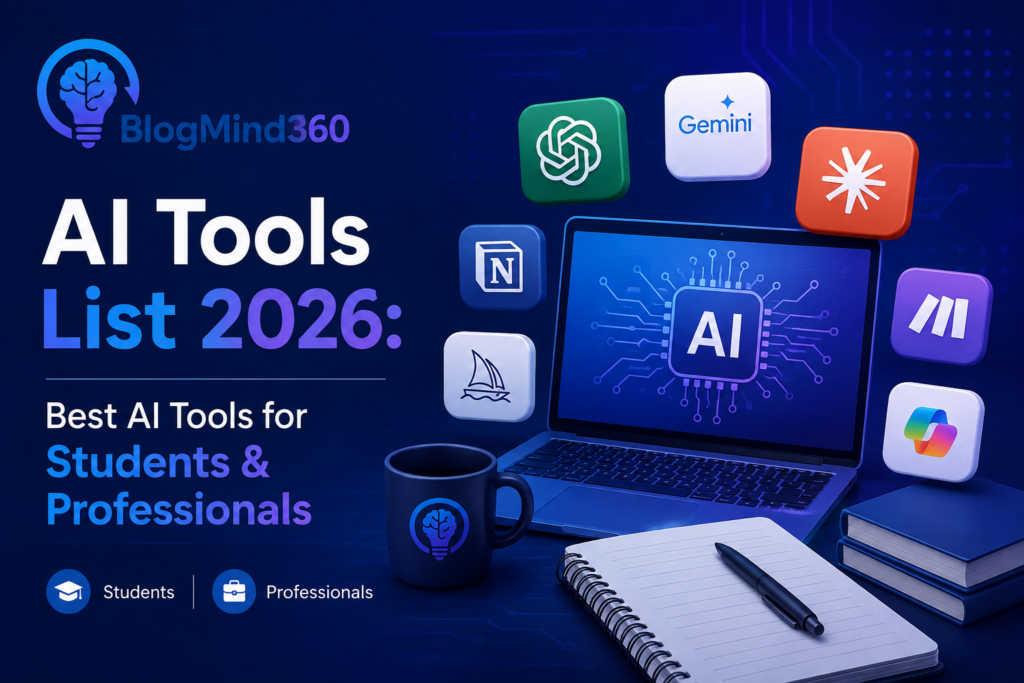
AI is no longer a “nice to have” — in 2026, it’s part of how students study and how professionals work every single day. But with hundreds of new AI apps launching every month, the real question isn’t “should I use AI tools?” It’s “which ones are actually worth my time?”
This guide breaks down the 20 best AI tools for students and professionals in 2026 — organized by use case, with honest pros, cons, pricing, and practical advice on how to pick the right one for your specific needs.
Quick answer: The best all-round AI tools for students and professionals in 2026 are ChatGPT (general-purpose assistant), Google NotebookLM (studying from your own material), Grammarly (writing and editing), Perplexity AI (research with cited sources), Notion AI (notes and productivity), Microsoft Copilot (Office workflows), Claude (long-document analysis), Canva AI (design), GitHub Copilot (coding), and Otter.ai (meeting and lecture transcription).
Why AI Tools Matter More Than Ever in 2026
Artificial intelligence has moved past the “experimental” phase. In 2026, it’s woven into how universities teach, how companies hire, and how everyday work gets done. Professionals who use AI tools consistently report saving several hours a week on routine tasks — time that gets redirected toward higher-value work like strategy, client relationships, and creative problem-solving. Workers with demonstrated AI skills are also increasingly commanding a noticeable wage premium over peers in identical roles who don’t use these tools at all.
For students, the shift is just as significant. Universities have largely moved past debating whether AI belongs in the classroom — the more common question now is how to use it responsibly. Many institutions have added AI literacy directly into lectures, research modules, and writing-support programs, treating it as a core academic skill rather than a shortcut to be avoided.
That said, more tools doesn’t automatically mean more productivity. The real skill in 2026 isn’t knowing that AI exists — it’s knowing which specific tool solves which specific problem, and building a small, deliberate toolkit instead of chasing every new app that launches. That’s exactly what this guide is built to help with.
Table of Contents
- How We Selected These Tools
- Best AI Tools for Students in 2026
- Best AI Tools for Professionals in 2026
- Free vs Paid: What’s Actually Worth Paying For
- How to Choose the Right AI Tool for You
- AI Tools and Academic Integrity: What Students Need to Know
- Frequently Asked Questions
How We Selected These Tools
This list wasn’t built by just skimming app store rankings. Each tool below was evaluated on four criteria that actually matter to a student or a working professional:
- Real-world usefulness — does it solve an actual daily problem, or is it a novelty?
- Learning curve — can a beginner start getting value in under 10 minutes?
- Free tier quality — is the free version genuinely usable, or a crippled trial?
- Data and privacy practices — does the tool state clearly how your data is used, especially for academic and workplace documents?
Our editorial team tests tools hands-on across writing, research, coding, and design workflows before including them here, and we update this list regularly as new tools launch and older ones change their pricing or features. Tools that failed our hands-on testing — buggy free tiers, unclear pricing, or vague data policies — were left off this list even if they’re heavily marketed elsewhere, because the goal here is a shortlist you can trust, not a longest-possible list of every AI app on the market.
If you’re comparing AI writing tools specifically, our deep dive on Top AI Writing Assistants Compared goes further into that category alone.
Best AI Tools for Students in 2026
1. ChatGPT — Best All-Round AI Assistant
ChatGPT remains the most widely used AI tool among students in 2026, and for good reason. It helps with brainstorming ideas, explaining difficult homework concepts, drafting outlines, debugging code, and practicing a new language through conversation.
Best for: General-purpose academic support — research assistance, assignment writing, exam preparation.
Key features: – Natural conversation-based Q&A across nearly any subject – Code generation and debugging help – Custom GPTs for specific study workflows (flashcards, summarizers, etc.) – Voice mode for hands-free studying
Pricing: Free tier available with usage limits; paid plans unlock faster responses and higher limits.
Watch out for: Always verify facts and citations independently — treat it as a study partner, not a source of truth. ChatGPT can sound confident even when it’s wrong, especially on niche academic topics, recent events, or exact statistics, so cross-check anything you plan to cite in a paper.
Real-world example: A common student workflow is using ChatGPT to turn a messy list of research notes into a structured essay outline, then writing the actual essay yourself using that structure — this keeps the thinking and writing your own while still saving the 30-45 minutes usually spent staring at a blank page trying to organize ideas.
2. Google NotebookLM — Best for Studying From Your Own Material
NotebookLM is arguably the most underrated free tool for students in 2026. Instead of pulling answers from the open internet, you upload your own lecture notes, textbook PDFs, and reading lists, and it answers questions only from that material — with citations pointing back to the exact page or paragraph.
Best for: Exam revision, thesis research, turning long PDFs into digestible summaries.
Key features: – Source-grounded answers (reduces made-up information) – Auto-generated study guides and audio overviews – Works directly from uploaded documents, not the open web
Pricing: Free, with generous usage limits for students.
Why it’s different: Most AI chatbots pull answers from their general training data, which can drift away from what your professor actually taught or what your specific textbook says. NotebookLM flips that — it refuses to answer outside the documents you’ve given it, which makes it far safer for exam prep since you’re revising your actual syllabus content, not a generic internet answer that might not match your course.
3. Grammarly (with Grammarly AI) — Best for Writing and Editing
Grammarly has been a staple for students for years, and its AI layer now goes beyond spelling and grammar — it suggests clarity, tone, and structure improvements for essays, assignments, and professional emails.
Best for: Essays, assignments, research papers, professional emails.
Key features: – Real-time grammar, tone, and clarity suggestions – Plagiarism checking on paid plans – Works across Google Docs, Word, and browser-based writing
Pricing: Free tier covers core grammar checking; paid plans add advanced style and plagiarism tools.
Tip: Turn on the “tone detector” feature before submitting professional emails or scholarship application essays — it flags when writing accidentally reads as too casual or too aggressive, a mistake that’s easy to miss when you’ve read your own draft ten times.
4. Notion AI — Best for Notes and Project Organization
Notion AI combines note-taking, task management, and an in-workspace AI assistant. Students use it to organize lecture notes, plan group projects, and keep deadlines on track in one place — a habit that carries directly into professional project management later.
Best for: Note organization, group projects, personal productivity systems.
Key features: – AI-assisted note summarization and writing – Databases for tracking assignments and deadlines – Real-time collaboration for group work
Pricing: Free personal plan; paid tiers add more AI credits and storage.
Why it carries into your career: The habit of keeping structured, searchable notes in Notion during college translates directly into how modern teams manage projects at work. Students who build this habit early tend to adapt faster to workplace project-management tools after graduation, since the underlying skill — organizing information into a system instead of scattered documents — is the same.
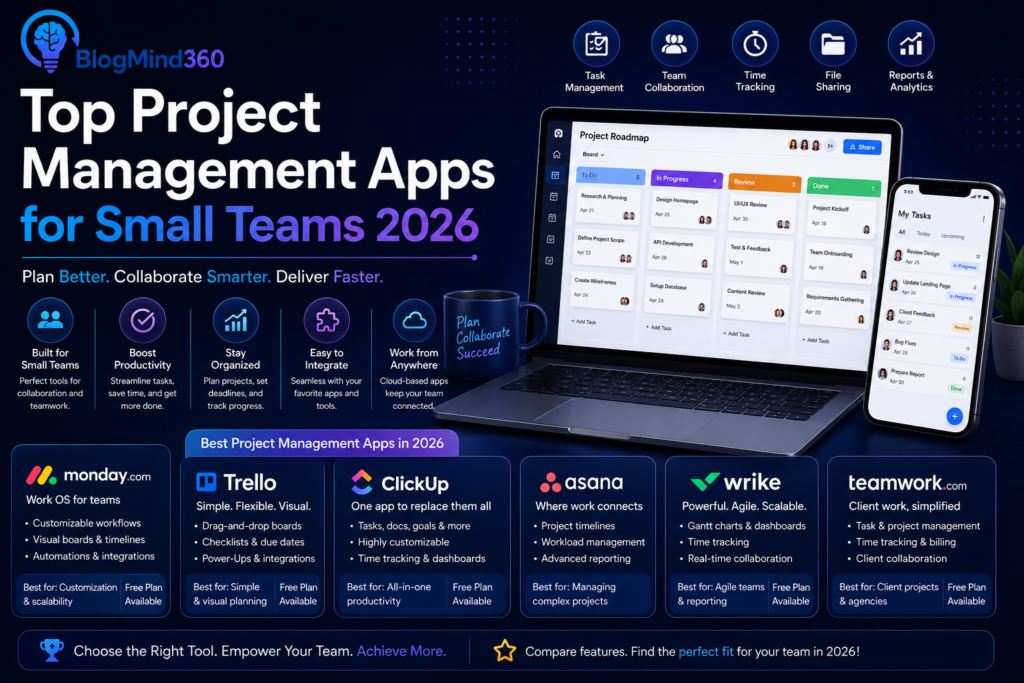
If your workflow leans more toward task boards and team coordination than notes, it’s worth comparing this against dedicated options in our guide to Top Project Management Apps for Small Teams 2026.
5. Gemini — Best for Google Workspace Integration
Gemini is built directly into Gmail, Docs, and Sheets, which makes it a natural fit for students already living inside the Google ecosystem. It’s strong at summarizing long email threads, drafting first versions of documents, and quickly analyzing data in Sheets.
Best for: Students who already use Google Docs/Sheets for coursework.
Key features: – Native integration across Gmail, Docs, Sheets, and Slides – Long-context understanding for large documents – Multimodal input (text, images, and voice)
Pricing: Free tier included with Google accounts; advanced features on paid plans.
Best paired with: Since it’s already inside Docs and Sheets, Gemini works well as a “second tool” alongside ChatGPT or Claude — use it for quick in-document edits and data questions, and reach for a dedicated chatbot for longer brainstorming sessions.
6. Khanmigo — Best AI Tutor for Step-by-Step Learning
Built by Khan Academy, Khanmigo acts less like a search engine and more like a patient tutor. Instead of just giving the answer, it walks students through the reasoning step by step — closer to how a real tutor would teach a concept.
Best for: Math, science, and concept-based learning where understanding matters more than the final answer.
Key features: – Socratic-style guided explanations instead of direct answers – Subject coverage aligned with school curricula – Designed with academic-integrity guardrails
Pricing: Free or low-cost through many school and district partnerships.
Who it’s really for: Students who feel like they “just don’t get” a subject often do better with Khanmigo than a general chatbot, because it’s specifically designed to avoid handing over the final answer — it keeps asking guiding questions until the student arrives at the answer themselves, which builds actual understanding instead of a copy-pasted solution.
7. Otter.ai — Best for Lecture and Meeting Transcription
Otter automatically converts spoken lectures, seminars, or study group discussions into searchable text in real time, so you can focus on listening instead of scribbling notes.
Best for: Recording and reviewing lectures, group discussions, and later, workplace meetings.
Key features: – Real-time transcription with speaker labels – Auto-generated summaries and action items – Searchable transcript archive
Pricing: Free tier with monthly transcription minute limits.
Practical use: Record a 90-minute lecture, get a searchable transcript within minutes, and use keyword search to jump straight to the part where your professor mentioned an upcoming exam topic — far faster than scrubbing through an audio file manually.
8. Canva AI — Best for Presentations and Visual Projects
Canva’s AI-powered design suggestions make it easy to build professional-looking presentations, posters, and infographics — no design background required. It’s especially useful for group projects and, later, professional pitch decks.
Best for: Presentations, posters, social projects, and portfolio pieces.
Key features: – AI-generated layout and design suggestions – Education-specific template library – Real-time collaboration for group projects
Pricing: Free tier with basic templates; Pro plan adds advanced AI tools and storage.
Design confidence: You don’t need any prior design training to use Canva effectively — describe what you need (“a clean, minimal slide comparing three data points”) and the AI suggests a layout, which you then customize with your own content and colors.
9. QuillBot — Best for Paraphrasing and Summarizing
QuillBot helps students rephrase dense academic text into clearer language and condense long readings into key points — useful for revision and for improving your own writing style over time.
Best for: Summarizing readings, improving sentence variety, avoiding overly complex phrasing.
Key features: – Paraphrasing with multiple tone/style modes – Text summarizer for long articles and papers – Built-in grammar checker
Pricing: Free tier with daily word limits; premium removes limits.
Caution: Use paraphrasing tools to understand a passage better or vary your sentence structure — not to rewrite someone else’s work and submit it as fully original. Most universities’ plagiarism detectors can flag heavily paraphrased text, and more importantly, the goal should be learning to write in your own voice, not disguising someone else’s.
10. Perplexity AI — Best for Research With Verifiable Sources
Perplexity blends AI answers with real-time web search and always shows its sources, which makes it a much safer research starting point than a plain chatbot — students and early-career journalists particularly benefit from this transparency.
Best for: Research papers, fact-checking, current-events assignments.
Key features: – Cited, source-linked answers – Real-time web search built in – Follow-up question threads for deeper research
Pricing: Free tier available; Pro plan adds more searches and advanced models.
Why sources matter: When a research assistant tool shows you exactly where an answer came from, you can click through and verify it yourself — a habit that protects you from citing outdated or incorrect information, and one that professors and editors increasingly expect students and early-career writers to practice.
Best AI Tools for Professionals in 2026
According to 2026 workplace research, professionals who use AI tools consistently save several hours a week on routine tasks, and those with strong AI skills increasingly earn more than peers who don’t use these tools at all. The gap isn’t about which single tool you use — it’s about having the right tool for each type of work.
11. Microsoft Copilot — Best for Microsoft Office Workflows
For professionals who live inside Word, Excel, PowerPoint, and Outlook, Copilot cuts down repetitive work dramatically — drafting emails, summarizing meeting notes, building first-draft slide decks, and writing Excel formulas from plain-English descriptions.
Best for: Corporate professionals already embedded in the Microsoft 365 ecosystem.
Key features: – Native integration across Word, Excel, PowerPoint, Outlook, Teams – Meeting summarization inside Teams – Formula and data-analysis assistance in Excel
Where it saves the most time: Summarizing a long email thread before a meeting, generating a first-draft slide deck from bullet points, and writing complex Excel formulas from a plain-English description (“sum all sales over ₹50,000 from the West region”) instead of remembering the exact syntax.
If Excel formulas and formatting are your main pain point, see our related coverage on spreadsheet workflows in Best Free Alternatives to Adobe Photoshop for adjacent creative-tool comparisons, or explore project tracking tools in our Project Management Apps guide.
12. Claude — Best for Long-Document Analysis and Writing
Claude is known for producing detailed, well-reasoned responses and handling long documents — contracts, reports, research papers — without losing track of earlier context. Many professionals use it for drafting, editing, and reviewing lengthy material in one pass.
Best for: Legal, research, consulting, and any role involving long-form document review or writing.
Key features: – Strong performance on long documents and multi-step reasoning – Careful, detailed writing style suited to formal documents – File upload support for direct document analysis
Practical example: Uploading a 40-page contract or research report and asking targeted questions (“what are the three biggest risks mentioned in section 4?”) is far faster than manually reading and highlighting the entire document, though the output should still be reviewed by a qualified professional for anything legally or financially binding.
13. GitHub Copilot — Best for Developers
GitHub Copilot suggests code in real time as developers type, autocompletes entire functions, and can explain unfamiliar code — a genuine productivity boost for both junior and senior engineers.
Best for: Software developers and engineering teams.
Key features: – Inline code suggestions across major IDEs – Chat-based code explanation and debugging – Test-generation support
Impact on workflow: Developers report writing boilerplate and repetitive code noticeably faster with Copilot, freeing more time for architecture decisions and problem-solving — the parts of the job that actually require human judgment.
14. Jasper AI — Best for Marketing Content at Scale
Jasper is built specifically for marketing teams that need to produce a high volume of on-brand content — ad copy, blog outlines, social captions — while keeping a consistent brand voice across writers.
Best for: Marketing teams, content agencies, brand managers.
Key features: – Brand voice training for consistent tone across a team – Templates for ads, emails, and blog content – Team collaboration and approval workflows
Best for: Marketing teams, content agencies, brand managers who need consistent output without hiring a full writing team for every campaign.
15. Canva AI (Professional Tier) — Best for In-House Design Teams
Beyond student use, Canva’s professional tier is widely used by small business teams and marketing departments that need fast, on-brand visuals without a dedicated designer for every request.
Best for: Small business marketing, social media management, internal presentations.
Team advantage: Brand kit features let an entire team pull from the same locked-in fonts, colors, and logo placement automatically, which keeps marketing materials consistent even when five different people are creating content.
16. Otter.ai (Business Tier) — Best for Meeting Documentation
The same transcription engine students use for lectures scales well for business meetings — automatically capturing action items, decisions, and searchable meeting archives across a team.
Best for: Remote and hybrid teams that need reliable meeting records.
Accountability benefit: Because every meeting has an automatic written record with clearly flagged action items, fewer tasks fall through the cracks after the meeting ends — a common complaint in fast-moving remote teams.
17. Zapier AI — Best for Workflow Automation
Zapier connects different apps (email, CRM, spreadsheets, calendars) and uses AI to trigger actions automatically — for example, adding a new lead to a CRM the moment a form is submitted, without manual data entry.
Best for: Operations, sales, and admin-heavy roles looking to cut manual work.
Key features: – No-code automation between thousands of apps – AI-suggested workflow (Zap) creation – Conditional logic for multi-step automations
Time saved: A single well-built automation — like auto-sending a welcome email the moment someone fills out a signup form — can eliminate dozens of small manual tasks a week, which adds up significantly over a year for a small operations team.
18. Pictory AI — Best for Turning Text Into Video
Pictory converts blog posts, scripts, or articles into short videos automatically — useful for marketing teams and educators repurposing written content into video for social platforms.
Best for: Content marketers, educators, social media managers who need to repurpose one piece of content across multiple formats without re-recording from scratch.
19. Perplexity AI (Professional Use) — Best for Fast, Cited Research
Beyond academic use, professionals in journalism, consulting, and market research rely on Perplexity for quick, source-backed answers during time-pressured research — cutting down the manual work of digging through multiple search results while still being able to verify every claim.
20. Notion AI (Team Workspaces) — Best for Team Knowledge Management
For professional teams, Notion AI extends beyond personal notes into shared knowledge bases, project wikis, and meeting-note summarization — keeping institutional knowledge searchable in one place instead of scattered across chat threads, emails, and forgotten documents.
Data Privacy: What to Check Before Uploading Work Documents
Before uploading anything sensitive — client contracts, unpublished research, financial data, or internal company documents — to any AI tool, a few checks are worth the extra two minutes:
- Read the data-retention policy. Some tools use uploaded content to train future models unless you opt out; others don’t retain it at all. This varies by tool and by plan, so check the specific policy rather than assuming.
- Check if your organization has an approved tool list. Many companies now restrict which AI tools employees can use with company data, precisely because of these differences in data handling.
- Avoid uploading anything under NDA or legal privilege unless your organization has explicitly confirmed the tool is approved for that category of information.
- Use enterprise or business tiers for work data where possible — these typically come with stronger data-handling guarantees than free consumer tiers.
This single habit — pausing to check before uploading — is one of the simplest ways to use AI tools professionally without creating a data-security incident.
Free vs Paid: What’s Actually Worth Paying For
| Tool | Free Tier Usable? | Worth Upgrading For |
| ChatGPT | Yes, solid for daily use | Faster responses, higher limits, advanced reasoning |
| Grammarly | Yes, core grammar checks | Plagiarism checker, advanced style suggestions |
| NotebookLM | Yes, fully | Rarely needed — free tier is generous |
| Canva AI | Yes, basic templates | Brand kits, larger template library, more AI credits |
| Notion AI | Yes, limited AI credits | Unlimited AI usage, more storage |
| Perplexity | Yes, capped searches | Higher daily search limits, advanced models |
| Copilot (Microsoft) | Limited | Full integration across Word/Excel/PowerPoint |
| GitHub Copilot | Limited trial | Essential for daily professional coding use |
Rule of thumb: Start free everywhere. Only upgrade the one or two tools you use every single day — paying for five different AI subscriptions rarely makes sense for either a student budget or a small business.
Quick Picker: Best AI Tool by Role
| If you are a… | Start with |
| High school or college student | ChatGPT + NotebookLM + Grammarly |
| Graduate researcher | Perplexity AI + NotebookLM + Claude |
| Marketing professional | Jasper AI + Canva AI + Zapier |
| Software developer | GitHub Copilot + ChatGPT |
| Corporate/office professional | Microsoft Copilot + Otter.ai |
| Small business owner | Canva AI + Zapier AI + Notion AI |
| Content creator | Pictory AI + Canva AI + Grammarly |
| Project/team manager | Notion AI + Otter.ai |
This isn’t a rigid rulebook — think of it as a starting shortlist. Most people end up adjusting their exact combination after a few weeks of real use, once they see which tool actually earns a permanent spot in their daily routine.
How to Choose the Right AI Tool for You
With so many overlapping options, use this simple filter instead of trying every tool on this list:
- Identify your one biggest time-sink. Is it writing, research, note-taking, design, or repetitive admin work? Pick the tool built specifically for that.
- Test the free tier for a full week before paying for anything. Most tools above have usable free plans.
- Avoid tool overlap. You don’t need both Notion AI and a separate note app doing the same job — consolidate where you can.
- Check data privacy for sensitive work. For legal documents, medical information, or unpublished research, confirm the tool’s data-retention policy before uploading anything sensitive.
- Re-evaluate every few months. This space moves fast — a tool that was the best option in early 2026 may have a stronger competitor by year-end.
AI Tools and Academic Integrity: What Students Need to Know
The rules around AI in education have shifted in 2026. Most universities have moved away from blanket bans and now operate on a disclosure-based policy — meaning using AI isn’t automatically a violation, but using it without disclosing it often is. Before using any tool from this list for graded work, check your institution’s specific AI policy, and when in doubt, cite your AI use the same way you’d cite any other source.
A practical way to stay on the right side of this line:
- Use AI to brainstorm, outline, and explain concepts — this is almost universally accepted.
- Avoid submitting AI-generated text as your own final work unless your course explicitly allows it.
- Disclose AI assistance when your institution requires it, even for something as small as “used Grammarly for proofreading.”
- When unsure, ask your instructor directly rather than guessing — policies vary significantly between courses, departments, and universities, and a two-minute email can prevent a serious academic integrity issue.
The safest long-term habit is treating AI the way you’d treat a tutor or study group: useful for understanding and organizing ideas, but not a substitute for doing — and submitting — your own thinking.
Common Mistakes People Make With AI Tools
Even experienced users fall into a few predictable traps. Watching out for these will save more time than adding another tool to your stack:
- Using one tool for everything. A general chatbot is not a research engine, a design tool, and a transcription service all at once. Specialized tools consistently outperform general ones for their specific task.
- Not fact-checking outputs. AI tools can state incorrect information confidently. Always verify names, dates, statistics, and citations independently before using them in academic or professional work.
- Skipping the free tier test. Many people subscribe to a paid plan before confirming the tool actually fits their workflow. Test free first, always.
- Ignoring institutional or company policy. Whether it’s a university’s AI disclosure policy or a company’s approved-tools list, skipping this step creates avoidable risk.
- Treating AI output as a finished product. The strongest results come from using AI to produce a first draft or starting point, then applying your own judgment, editing, and expertise on top of it.
Frequently Asked Questions
What is the best free AI tool for students in 2026? Google NotebookLM is the strongest fully-free option for students, since it lets you generate study guides and get cited answers directly from your own lecture notes and textbooks at no cost.
What is the best AI tool for professionals in 2026? There’s no single “best” — it depends on your role. Microsoft Copilot is best for Office-based roles, Claude for long-document writing and analysis, and GitHub Copilot for developers.
Are AI tools free to use? Most major AI tools — including ChatGPT, Grammarly, Gemini, Notion AI, and Perplexity — offer a usable free tier. Paid plans typically unlock higher usage limits, faster responses, and advanced features.
Is it okay to use AI tools for college assignments? It depends on your institution’s policy. In 2026, most universities allow AI use but require disclosure. Always check your specific course or university guidelines before using AI on graded work.
Which AI tool is best for research with reliable sources? Perplexity AI is specifically built for source-cited research, showing links to where each answer comes from — making it easier to verify information than a standard chatbot response.
Can one AI tool replace all the others on this list? No single tool covers writing, research, design, coding, and transcription equally well. Most students and professionals get the best results from combining two or three specialized tools rather than relying on one all-in-one app.
How many AI tools should a beginner start with? Two or three is enough to start. Pick one general-purpose assistant (like ChatGPT or Gemini), one writing/editing tool (like Grammarly), and one tool specific to your biggest daily task, then expand only if you find a genuine gap.
Do AI tools work offline? Most AI tools listed here require an internet connection since they run on cloud-based models. A small number of note-taking or writing apps offer limited offline functionality for basic (non-AI) features.
Is it safe to upload personal or company documents to AI tools? It depends on the tool and plan. Always check the data-retention and training-use policy before uploading sensitive personal, academic, or company documents, and prefer business/enterprise tiers for confidential work.
Will AI tools replace jobs for students entering the workforce? Most current research points to AI changing how jobs are done rather than eliminating them outright, with the biggest advantage going to professionals who can use AI tools skillfully alongside their own expertise, not those who avoid them entirely.