Microsoft’s August 2026 update for Windows 11 is rolling out in two stages — an optional preview available right now, and the full Patch Tuesday release landing on August 11, 2026. It’s not a flashy, headline-grabbing release, but it includes one change a lot of users have specifically been asking for: the ability to remove a built-in AI component from Copilot+ PCs, alongside better fingerprint sign-in support and a small but genuinely useful File Explorer fix.
Here’s a complete breakdown of what’s changing, how to get it early if you want to, and what you should do before installing.
Quick Answer: What’s New in the Windows 11 August 2026 Update?
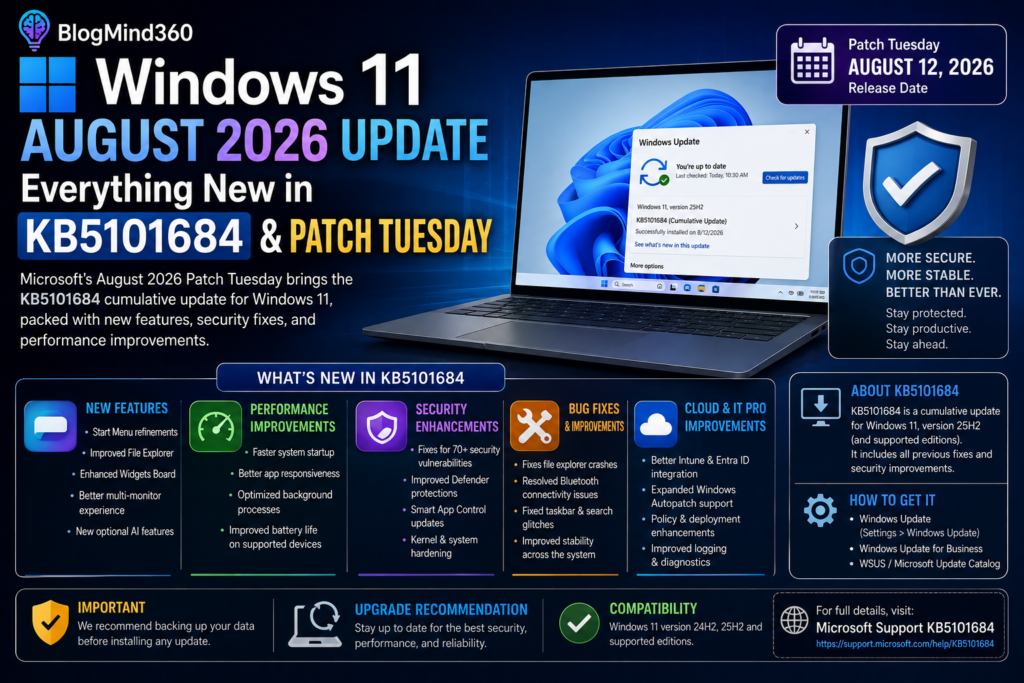
The Windows 11 August 2026 update — currently available as the optional preview KB5101684 and rolling out to everyone on August 11, 2026 — lets you uninstall the Image Generation AI component from supported Copilot+ PCs, adds Windows Hello support for external plug-in fingerprint readers, updates File Explorer to display file sizes in KB, MB, and GB instead of only KB, and introduces new touchpad gesture controls and Voice Isolation for Voice Access. Microsoft has not reported any known issues with the update as of this writing.
That’s the short version. Here’s the detailed breakdown of every change, plus guidance on whether you should install the preview now or simply wait for the automatic rollout.
Windows 11 August 2026 Update: Full Feature Breakdown
| Feature | What Changes | Where to Find It |
| Remove Image Generation AI | Uninstall the on-device AI image component from supported Copilot+ PCs | Available wherever the component is currently installed |
| Windows Hello ESS Fingerprint | Secure sign-in now supports external, plug-in fingerprint readers, not just built-in ones | Settings > Accounts > Sign-in options |
| File Explorer File Sizes | File sizes now display in KB, MB, and GB in Details view, instead of only in KB | File Explorer > Details view |
| Touchpad Gestures | Adjustable scroll and zoom speed, plus accelerated scrolling options | Settings > Bluetooth & devices > Touchpad |
| Voice Isolation | Filters out background voices and noise for more accurate Voice Access recognition | Voice Access settings > Improve speech recognition |
| Widget Notification Badges | Badges on the Taskbar and Lock screen now use your accent color instead of red | Taskbar and Lock screen |
Beyond the headline items, Microsoft is also shipping smaller improvements to Windows Search typo tolerance, Start menu reliability, power settings consistency, and general File Explorer stability. The Start menu’s account control flyout is also getting a visual refresh that includes a subscription-status badge. None of these changes are individually dramatic — this is very much a polish-focused release rather than a feature showcase.
Can You Finally Remove AI From a Copilot+ PC?
This is the change generating the most conversation around this update, and the honest answer is: partially, yes. The August update lets you uninstall the Image Generation AI component specifically, on Copilot+ PCs where it’s installed. That’s a genuine option for anyone who wants less built-in AI running in the background of their machine — but it’s important to understand the scope. This removes the on-device image generation model specifically, not Copilot as a whole, and not every AI feature baked into Windows 11.
Why This Matters
Copilot+ PCs ship with several on-device AI models running locally rather than in the cloud, and this update both refreshes those models and gives users the option to uninstall the image-focused one. If your actual goal is stripping out AI more broadly and reclaiming system resources, that currently requires several additional steps across different areas of Windows settings — this update doesn’t offer a single “turn off all AI” switch.
For most people, removing the Image Generation AI component makes sense if you simply never use AI image generation and want to free up the disk space and background processing overhead it takes up. It’s entirely optional — if you do use the feature, there’s no reason to touch it, and nothing is being removed automatically.
Windows Hello Gets Smarter Fingerprint Support
Previously, Windows Hello’s Enhanced Sign-in Security (ESS) was largely limited to built-in fingerprint sensors on laptops that shipped with them. The August update extends that support to external, plug-in fingerprint readers, which matters most for desktop PC users and anyone using a Copilot+ PC that doesn’t have a built-in sensor. Setting one up works the same way as before — head to Settings > Accounts > Sign-in options and follow the enrollment steps for your connected reader.
The File Explorer Fix Everyone’s Been Waiting For
It sounds minor, but this one has been a genuinely long-requested change: File Explorer will finally display file sizes in KB, MB, and GB in Details view, rather than showing every file size in kilobytes regardless of how large the file actually is. If you’ve ever had to squint at a seven-digit KB number to figure out whether a file was actually a few hundred megabytes or several gigabytes, this fix removes that friction entirely.
How to Install the KB5101684 Preview Update Right Now
If you want the August features early rather than waiting for the automatic rollout on August 11, here’s how to grab the optional preview:
- Open Settings, then go to Windows Update, then Advanced options, then Optional updates.
- Look for the entry labeled “2026-07 Preview (KB5101684)” and select Download and install.
- Restart your PC when prompted to complete the installation.
- Confirm the update applied correctly under Settings > System > About — the OS build number should read 8973 (on version 24H2) or 26200.8973 (on version 25H2).
- If your PC behaves unexpectedly after installing, you can uninstall the update or use System Restore to roll back.
Before installing any preview update, back up your files or create a restore point. Preview updates carry a slightly higher chance of running into bugs than the final, fully tested Patch Tuesday release that follows about a week and a half later.
Should You Install the Preview or Just Wait?
For most everyday users, waiting until August 11 is the safer and simpler choice. The Patch Tuesday release is the fully tested version of the same update, and it installs automatically without requiring you to dig through the Optional Updates menu. The preview build is best suited to enthusiasts who specifically want early access to new features and are comfortable troubleshooting or rolling back if something goes wrong.
Microsoft has stated it isn’t currently aware of any issues with KB5101684, which is a reasonably good sign — but preview builds do occasionally surface edge-case problems on specific hardware configurations that only show up at broader scale. Recent history is a useful reminder here: July’s cumulative update briefly caused shutdown and overheating issues on some Dell PCs due to a driver conflict, prompting Microsoft to ship a follow-up fix. Nothing similar has been reported for this update so far, but it’s exactly the kind of scenario a quick backup protects you against.
What to Do Before You Install (Preview or Patch Tuesday)
Whether you’re grabbing the preview now or letting the automatic update install on August 11, a couple of quick precautions make the difference between a smooth update and a stressful one:
- Back up your important files — to an external drive, cloud storage, or both — so nothing critical depends entirely on the update completing without a hitch.
- Create a System Restore point before installing, giving you a straightforward way to roll Windows back to its pre-update state if something does go wrong.
- Make sure your device has stable power — plug in laptops rather than relying on battery — since an interrupted update is one of the more common causes of update-related problems.
- Close any resource-intensive applications before starting the install to reduce the chance of conflicts during the restart-and-apply process.
For the vast majority of PCs, the actual installation is low-risk. The caution here isn’t about expecting problems — it’s about the small subset of hardware and driver combinations that occasionally hit a snag, and making sure that if yours is one of them, it’s a quick fix rather than a lost afternoon.
Two More Things Windows 11 Users Should Know This Month
Alongside the August update itself, there are two housekeeping items worth being aware of if you’re already in your Windows Update settings.
Windows 11 24H2 End of Updates: October 13, 2026
Windows 11 version 24H2 Home and Pro editions reach end of updates on October 13, 2026. After that date, those specific editions will stop receiving security and quality fixes entirely. If you’re currently running 24H2, it’s worth planning your move to version 25H2 before that deadline arrives, since staying on an unsupported version leaves your PC increasingly exposed to security risks over time. The upgrade itself is typically straightforward through Windows Update once 25H2 becomes available for your device.
Secure Boot Certificate Rollout Continues
Separately, Microsoft is continuing its rollout of updated Secure Boot certificates, since the original certificates began expiring back in June 2026. If your device hasn’t received the newer certificates yet, don’t worry — it will continue to start up and update normally in the meantime, and the new certificates continue arriving automatically through Windows Update in the background. This isn’t something most users need to take any manual action on; it’s simply worth knowing about if you come across references to it in Microsoft’s update documentation.
Neither of these items is urgent enough to require immediate action this week, but both are worth a quick mental note while you’re already reviewing your update settings.
Why Small Updates Like This Still Matter
It’s easy to overlook a release like this one in favor of bigger headline-grabbing software news, but incremental updates like the August 2026 release are exactly what keeps a widely used operating system running smoothly for hundreds of millions of devices. A file-size display fix might not make headlines, but it’s the kind of practical improvement that genuinely makes daily computer use less frustrating for a huge number of people — and the option to remove specific AI components reflects a broader industry trend toward giving users more granular control over which AI features actually run on their hardware, rather than an all-or-nothing approach.
If you’re managing software updates across a small team or business rather than just a personal PC, staying on top of monthly release notes like this one is also worth pairing with the right productivity tooling. Our guide to the best project management apps for small teams in 2026 covers tools that can help you track update rollouts, IT tickets, and general workflow alongside routine software maintenance like this.
And if the mention of removing built-in AI features has you thinking more broadly about which AI tools are actually worth keeping installed versus which ones you can live without, our breakdown of the top AI writing assistants compared is a useful next read.
How This Update Fits Into Microsoft’s Broader 2026 Roadmap
The August 2026 update doesn’t exist in isolation — it’s part of a steady cadence of monthly Windows 11 releases that have increasingly focused on two parallel priorities: tightening security through initiatives like Enhanced Sign-in Security and Secure Boot certificate renewal, and giving users more granular control over the AI features that ship built into Copilot+ hardware. That second priority in particular reflects a noticeable shift in Microsoft’s approach over the past year. Earlier Copilot+ PC releases leaned heavily into bundling AI features as always-on defaults, while more recent updates — including this one — have moved toward offering genuine opt-out controls for at least some components.
This matters for anyone weighing whether to buy a Copilot+ PC or stick with more traditional hardware: the AI features on these machines are becoming somewhat more modular over time, rather than an all-or-nothing package. It’s still an incomplete picture — as this update shows, only the Image Generation AI component can currently be removed independently — but the direction of travel suggests further granular controls are likely in future monthly releases, based on the pattern Microsoft has followed with security features like Windows Hello ESS, which started narrow and expanded hardware support incrementally over successive updates, exactly as it has with external fingerprint readers in this release.
For IT administrators managing fleets of Windows 11 devices across an organization, this incremental rollout pattern is also worth factoring into deployment planning — testing each optional preview against a small pilot group before wider rollout remains good practice, particularly given the July driver conflict that briefly affected some Dell hardware.
Windows 11 vs. Windows 10: Why This Update Matters More If You Haven’t Upgraded Yet
If you’re still running Windows 10 and wondering whether the effort of switching is worth it, releases like this one are a useful illustration of the gap that continues to widen between the two operating systems. Windows 10 reached its official end of mainstream support in October 2025, meaning it no longer receives the kind of ongoing feature and security refinements shown in this article — updates like KB5101684 simply don’t exist for it anymore, aside from paid Extended Security Updates coverage for consumers and businesses willing to pay for continued patching.
Windows 11, by contrast, continues to receive monthly quality-of-life improvements on top of its security patches — file-size display fixes, expanded biometric hardware support, accessibility improvements like Voice Isolation, and incremental AI controls, all delivered through the same predictable Patch Tuesday cadence. None of these individual changes are dramatic, but cumulatively, they represent the kind of continuous refinement that a actively developed operating system delivers and an end-of-support one cannot.
For anyone weighing whether to finally make the jump, the practical calculus is straightforward: Windows 10 devices will become progressively less secure and less refined over time relative to Windows 11, even if the paid Extended Security Updates program keeps critical vulnerabilities patched for a while longer. Compatibility requirements for Windows 11 — including TPM 2.0 support — remain the main barrier for older hardware, but for any PC built within the last several years, upgrading is generally the more future-proof choice.
Frequently Asked Questions About the Windows 11 August 2026 Update
Is KB5101684 a security update?
No. KB5101684 is an optional, non-security preview update that lets you try August’s features ahead of schedule. The full security-inclusive version of the same update arrives automatically with the August 11, 2026 Patch Tuesday release.
Can I actually remove AI from my Copilot+ PC now?
You can remove the Image Generation AI component specifically on supported Copilot+ PCs where it’s installed. This is narrower than removing Copilot entirely or disabling every AI feature in Windows 11, but it is a genuine, optional uninstall option for that specific component.
How do I check if the update installed correctly?
Open Settings, then System, then About, and check the OS build number. It should read 26100.8973 if you’re on version 24H2, or 26200.8973 if you’re on version 25H2. A matching build number confirms the update applied successfully.
Should I install the preview now, or just wait for August 11?
Most users should simply wait for the automatic August 11 Patch Tuesday release, since it’s the fully tested version of the same update. Only install the optional preview early if you specifically want the new features ahead of time and are comfortable troubleshooting or rolling back if an issue comes up.
What does the Windows Hello ESS fingerprint change actually do?
It extends Windows Hello’s Enhanced Sign-in Security to support external, plug-in fingerprint readers, not just fingerprint sensors built directly into a laptop. This is especially useful for desktop PC users who want fingerprint sign-in but don’t have a built-in reader.
Does this update fix the File Explorer file-size issue?
Yes. File Explorer’s Details view will now display file sizes in KB, MB, and GB depending on the actual file size, rather than displaying every file size in kilobytes regardless of how large the file is.
What happens to Windows 11 24H2 after October 2026?
Windows 11 version 24H2 Home and Pro editions stop receiving security and quality updates after October 13, 2026. Users on 24H2 should plan to upgrade to version 25H2 before that date to continue receiving security patches.
Do I need to do anything about the Secure Boot certificate changes?
Generally, no. Microsoft is rolling out updated Secure Boot certificates automatically through Windows Update. Devices that haven’t received the new certificates yet will continue to function normally in the meantime.
Is it safe to install KB5101684 right now?
Microsoft has not reported any known issues with KB5101684 as of this writing. That said, as with any preview update, it’s good practice to back up your files or create a restore point before installing, since preview builds carry a slightly higher chance of hardware-specific issues than the fully tested Patch Tuesday release.
Will this update slow down my PC?
There’s no indication this update is resource-intensive or likely to slow down typical hardware. If you do notice performance issues after any Windows update, checking Device Manager for driver conflicts and ensuring your PC has adequate free storage are good first troubleshooting steps.
Conclusion: A Practical, User-Focused Update
The Windows 11 August 2026 update isn’t going to make headlines the way a major redesign or a flashy new AI feature might, but it’s a genuinely useful, user-focused release. Giving people the option to remove a specific built-in AI component, extending fingerprint sign-in to external readers, and finally fixing how File Explorer displays file sizes are all the kind of small, practical improvements that add up over time — even if none of them individually feels exciting on their own.
Whether you grab the KB5101684 preview now or simply let the update install automatically on August 11, the main things to remember are straightforward: back up your files first, know that the AI removal option is limited to the image generation component specifically, and keep an eye on the October 13 deadline if you’re still running Windows 11 24H2.
For more software guides, app comparisons, and practical tech how-tos, explore our full Software section, including our roundup of the best free alternatives to Adobe Photoshop if you’re looking to streamline your software toolkit alongside this update.